Simulated
Overview
This section will go through how to simulate User and Access Management for an Assistant. The steps consist of:
- Create a variable assigned to an expression of a dictionary within the assistant platfrom and include the necessary users and their appropriate metadata within the dictionary.
- Modify the "Greet Customer" action within the assistant
Variable Creation
- Within the "Actions" section of the Assistant navigate to the "Created by you" variables and select "New Variable+"
- Create a variable name and set variable type to "Any"
- Update the "initial value":
-
Toggle the "Use Expression" to on
-
Create dictionary value:
ex)
[
    {
        "name":"martha",
        "password":"MARTHA",
        "access":"Admin",
        "role":"Manager"
    },
    {
        "name":"robert",
        "password":"ROBERT",
        "access":"Employee",
        "role":"Employee"
    }
]
-
- Click "Save"
Modify "Greet Customer" action
- Within the "Actions" section of the Assistant, navigate to the "Greet Customer" action
Authenticate User
-
Check valid user by setting a new boolean variable to an expression value of:
!(( [users variable from "Variable Creation" step above]).filter("user", "user.name == [current_user value]")).isEmpty())Example)
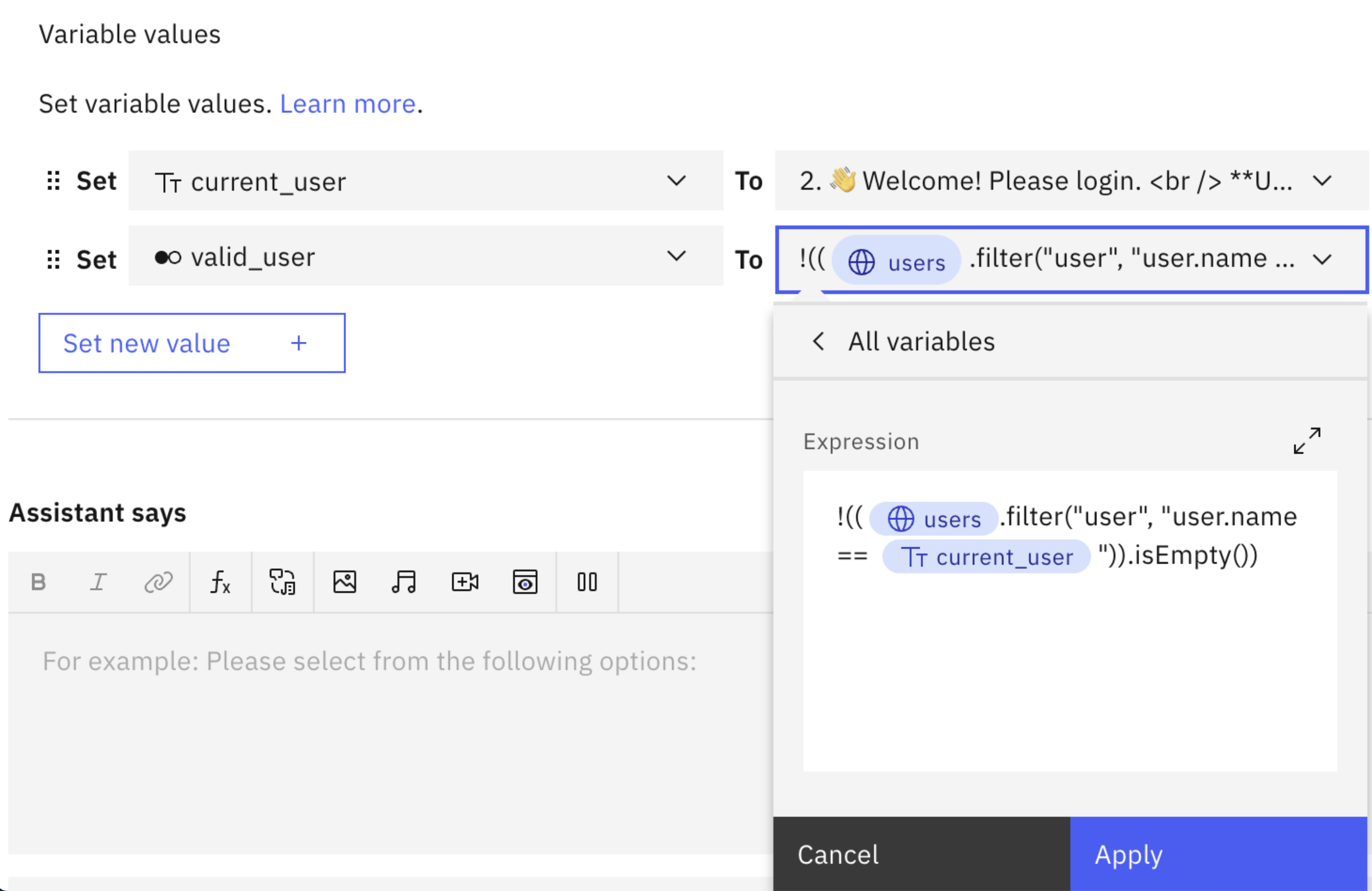
-
Ensure valid password by creating conditional statement with expression value of :
[current_password value] == (users.filter("user", "user.name == [current_user value]"))[0].passwordExample)
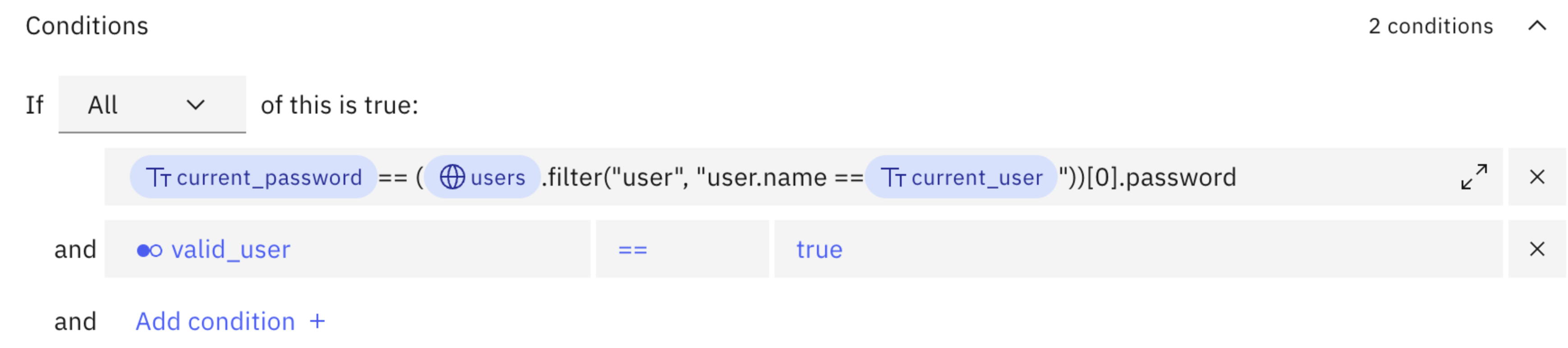
Change User's Password
- Set a new password for the current user with an expression like:
((( ${users}.filter(\"user\", \"user.name == ${current_user} \"))[0]).password) = ${new_pass} - Validate changed password with:
((( ${users}.filter(\"user\", \"user.name == ${current_user} \"))[0]).password)